How to manage on screen notifications
On Screen Notifications
CarrierNet provides you with two methods to show information to all your users.
The Welcome Message
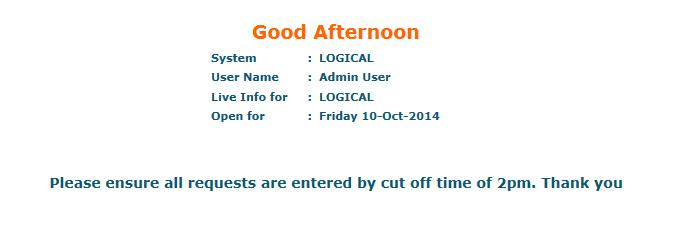
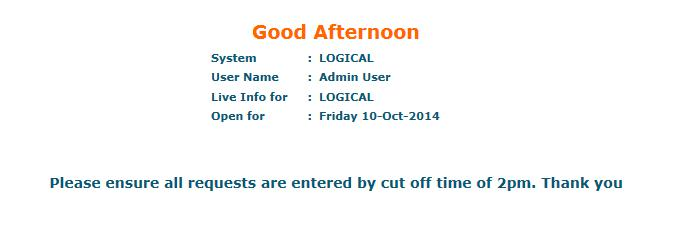
The Welcome Message will be shown on the main menu page to all users until message is no longer required or new message is set.
Notifications
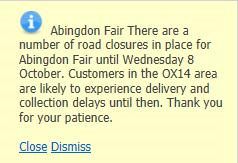
Notifications will be seen, if required, as a pop up on screen for all users. Notification will pop up regardless of which screen in CarrierNet the user is viewing at the time.
How to set Welcome message
Please note, your user role settings dictate whether you will be able to set new Welcome Message or Notifications.
Step 1 - Select Notifications seen towards top right of screen.
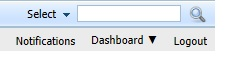
Step 2 - Notifications screen will be shown; select button Welcome Message.
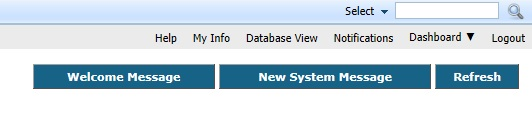
Step 3 - Complete pop up that is seen, example below. Set a future expiry date and Save.
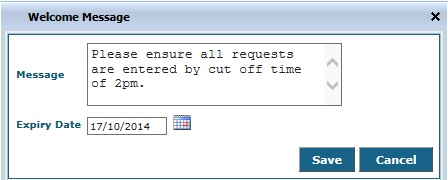
Finished - your new Welcome Message will now be seen by all your users on the main menu screen until expiry date is reached (or you change the message).
-------------------------------------------------------------
How to set Notification
Step 1 - Select Notifications seen towards top right of screen.
Step 2 - Notifications screen will be shown; select button New System Message.
Step 3 - Complete pop up that is seen, example below. Set a future expiry date and Save.
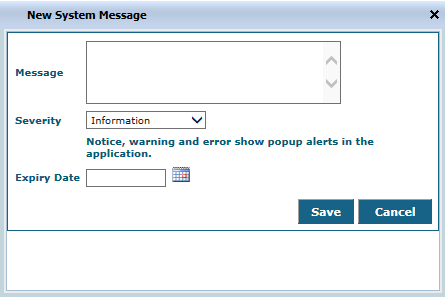
Please note, if choosing Severity of Notice, Warning or Error then pop up showing the message will be seen by all users until expiry date has been reached.
The colour of the message background will vary based on choice made.
If choosing Severity of Information, then this will not be shown to users in any pop up to screen, but will be viewable from Notifications. See Below.
To view all active Notifications including those set to Information, all users, once logged in, will see in top right of screen an indication that new Notifications have been set.
Count is seen as in example below and image of bell will be moving.
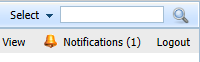
Click on Notifications to view in detail.
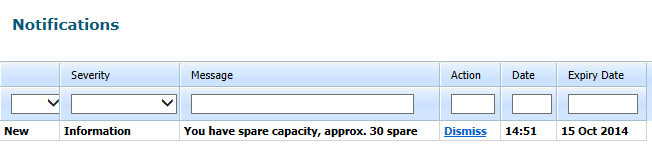
You will see, user will be able to "dismiss" this notice once seen (and hopefully read !)
Related Articles
Home Screen
1. Once logged in with your new password, you will see the following Home Screen. 2. A Menu bar along the top enables you to access the various Modules. The Menu Options available depend on your level of access. 3. Click on My Info Tab, along the ...Disabling Web Browser Pop-up Blockers
CarrierNet requires that your web browser is configured to allow pop-ups in order to function correctly. Often web browsers will default or be configured to block pop-ups from automatically appearing on your screen. Instructions for the most ...